# Herramientas de navegación

[![image.png](https://v5.docs.airvi.com.co/uploads/images/gallery/2026-07/scaled-1680-/ifqaQYSIdwOb8WJ3-image.png)](https://v5.docs.airvi.com.co/uploads/images/gallery/2026-07/ifqaQYSIdwOb8WJ3-image.png)

<table border="1" id="bkmrk-bot%C3%B3n-del-men%C3%BA-princ" style="border-collapse: collapse; width: 100%; height: 205.867px;"><colgroup><col style="width: 21.3839%;"></col><col style="width: 78.5267%;"></col></colgroup><tbody><tr style="height: 46.7614px;"><td style="height: 46.7614px;">[![image.png](https://v5.docs.airvi.com.co/uploads/images/gallery/2026-07/scaled-1680-/VBSytscFEhAL2VpC-image.png)](https://v5.docs.airvi.com.co/uploads/images/gallery/2026-07/VBSytscFEhAL2VpC-image.png)

</td><td class="align-left" style="height: 46.7614px;">Botón del menú principal : Permite navegar y acceder a todos los módulos del sistema de forma sencilla.</td></tr><tr style="height: 63.6222px;"><td style="height: 63.6222px;">[![image.png](https://v5.docs.airvi.com.co/uploads/images/gallery/2026-07/scaled-1680-/cSeQ40KPsmBu8Ns0-image.png)](https://v5.docs.airvi.com.co/uploads/images/gallery/2026-07/cSeQ40KPsmBu8Ns0-image.png)

</td><td style="height: 63.6222px;">Botón de navegación atrás : Este botón es funcional cuando hay más de un movimiento en el sistema. Al pulsarlo, podrá retroceder un paso en la navegación.</td></tr><tr style="height: 44.6449px;"><td style="height: 44.6449px;">[![image.png](https://v5.docs.airvi.com.co/uploads/images/gallery/2026-07/scaled-1680-/ATHr1T309YqMf2XE-image.png)](https://v5.docs.airvi.com.co/uploads/images/gallery/2026-07/ATHr1T309YqMf2XE-image.png)

</td><td style="height: 44.6449px;">Botón Home: Al hacer clic en este botón, será redirigido a la página principal del sistema.</td></tr><tr style="height: 50.8381px;"><td style="height: 50.8381px;">[![image.png](https://v5.docs.airvi.com.co/uploads/images/gallery/2026-07/scaled-1680-/TURyE4bnrHDsIy2C-image.png)](https://v5.docs.airvi.com.co/uploads/images/gallery/2026-07/TURyE4bnrHDsIy2C-image.png)

</td><td style="height: 50.8381px;">Botón de navegación adelante : Este botón estará habilitado solo si ha utilizado previamente el botón de retroceder. Le permitirá avanzar un paso en la navegación.</td></tr></tbody></table>

##### Alertas del Sistema

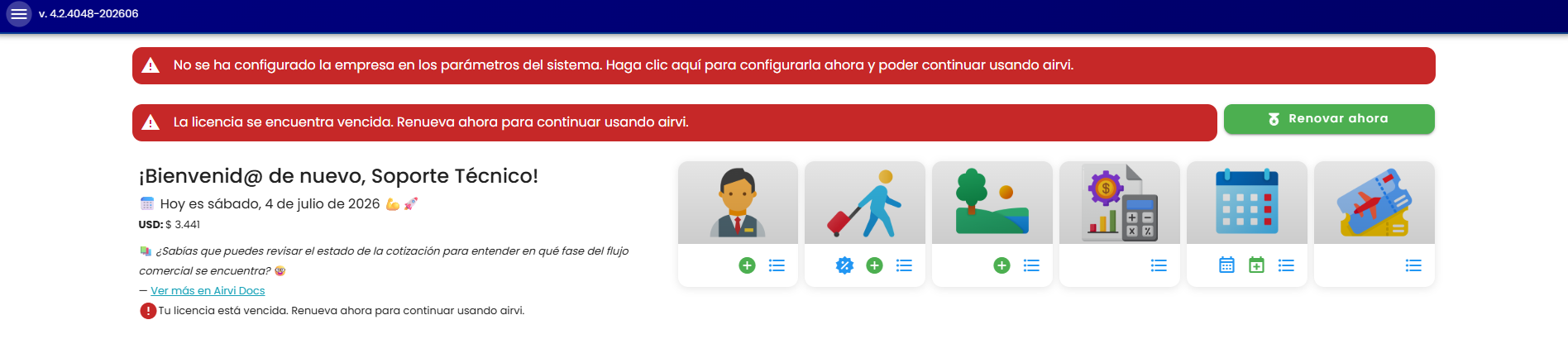
<table border="1" id="bkmrk-debajo-de-la-barra-s" style="border-collapse: collapse; width: 100%; height: 97.2266px;"><colgroup><col style="width: 49.881%;"></col><col style="width: 49.881%;"></col></colgroup><tbody><tr style="height: 97.2266px;"><td style="height: 97.2266px;">[![image.png](https://v5.docs.airvi.com.co/uploads/images/gallery/2026-07/scaled-1680-/1dY8jG5dyxTyeaYr-image.png)](https://v5.docs.airvi.com.co/uploads/images/gallery/2026-07/1dY8jG5dyxTyeaYr-image.png)

</td><td style="text-align: justify; height: 97.2266px;">Debajo de la barra superior, encontrará las alertas importantes relacionadas con el sistema. Al hacer clic en estas alertas, será dirigido a la sección correspondiente, donde podrá obtener más detalles sobre la causa de la alerta y las posibles soluciones.</td></tr></tbody></table>

##### Botón de Centro de ayuda

<table border="1" id="bkmrk-el-bot%C3%B3n-de-notifica" style="width: 100%;"><colgroup><col style="width: 25.9859%;"></col><col style="width: 74.0141%;"></col></colgroup><tbody><tr><td>[![image.png](https://v5.docs.airvi.com.co/uploads/images/gallery/2026-07/scaled-1680-/de5tmEUCxg0wS4c5-image.png)](https://v5.docs.airvi.com.co/uploads/images/gallery/2026-07/de5tmEUCxg0wS4c5-image.png)

  
</td><td>El botón de **Centro de ayuda** permite acceder rápidamente a la documentación de Airvi. Desde allí, el usuario puede consultar guías, resolver dudas frecuentes y encontrar información de soporte sobre el uso de la plataforma.

También incluye un **chat de apoyo**, donde el usuario puede realizar preguntas relacionadas con Airvi y recibir orientación sobre las funcionalidades del sistema.

</td></tr></tbody></table>

##### Botón de notificaciones

<table border="1" id="bkmrk-%C2%A0-%C2%A0-el-bot%C3%B3n-de-noti" style="border-collapse: collapse; width: 100%;"><colgroup><col style="width: 26.8285%;"></col><col style="width: 73.0821%;"></col></colgroup><tbody><tr><td>[![image.png](https://v5.docs.airvi.com.co/uploads/images/gallery/2026-07/scaled-1680-/IMLPd3p9ul40MNaB-image.png)](https://v5.docs.airvi.com.co/uploads/images/gallery/2026-07/IMLPd3p9ul40MNaB-image.png)

</td><td style="text-align: justify;">El botón de notificaciones muestra alertas configuradas que se activan cada vez que se ejecuta una actividad, como pagos o reservas, entre otros.</td></tr></tbody></table>

##### Botón "Más" o "Nuevo"

<table border="1" id="bkmrk-este-bot%C3%B3n-permite-a" style="border-collapse: collapse; width: 100%;"><colgroup><col style="width: 27.5743%;"></col><col style="width: 72.3362%;"></col></colgroup><tbody><tr><td>[![image.png](https://v5.docs.airvi.com.co/uploads/images/gallery/2026-07/scaled-1680-/p9t4z8HSjMmVvsM7-image.png)](https://v5.docs.airvi.com.co/uploads/images/gallery/2026-07/p9t4z8HSjMmVvsM7-image.png)

</td><td style="text-align: justify;">Este botón permite agregar un nuevo elemento. La función específica de este botón varía según el módulo en el que se encuentre.</td></tr></tbody></table>

##### Viajes y Reservas

[![image.png](https://v5.docs.airvi.com.co/uploads/images/gallery/2026-07/scaled-1680-/65SD1bNU842urqmF-image.png)](https://v5.docs.airvi.com.co/uploads/images/gallery/2026-07/65SD1bNU842urqmF-image.png)

[![image.png](https://v5.docs.airvi.com.co/uploads/images/gallery/2026-07/scaled-1680-/zU2Ay0xoWif7hCI6-image.png)](https://v5.docs.airvi.com.co/uploads/images/gallery/2026-07/zU2Ay0xoWif7hCI6-image.png)

<table border="1" id="bkmrk-bot%C3%B3n-de-viajes%3A-la-" style="border-collapse: collapse; width: 100%; height: 733.672px;"><colgroup><col style="width: 50.0596%;"></col><col style="width: 50.0596%;"></col></colgroup><tbody><tr style="height: 97.9844px;"><td style="height: 97.9844px;">[![image.png](https://v5.docs.airvi.com.co/uploads/images/gallery/2026-07/scaled-1680-/nJv7UlplFyOOZDTI-image.png)](https://v5.docs.airvi.com.co/uploads/images/gallery/2026-07/nJv7UlplFyOOZDTI-image.png)

</td><td class="align-left" style="height: 97.9844px;">Botón de viajes: La función de este botón es redireccionar al módulo de viajes.</td></tr><tr style="height: 90.9844px;"><td style="height: 90.9844px;">[![image.png](https://v5.docs.airvi.com.co/uploads/images/gallery/2026-07/scaled-1680-/80aQMyfnNxU9HF4I-image.png)](https://v5.docs.airvi.com.co/uploads/images/gallery/2026-07/80aQMyfnNxU9HF4I-image.png)

</td><td style="height: 90.9844px;">Botón de habitaciones: La función de este botón es redireccionar al módulo de calendario de habitaciones.</td></tr><tr style="height: 92.9844px;"><td style="height: 92.9844px;">[![image.png](https://v5.docs.airvi.com.co/uploads/images/gallery/2026-07/scaled-1680-/O49y4fAwbx2aRflH-image.png)](https://v5.docs.airvi.com.co/uploads/images/gallery/2026-07/O49y4fAwbx2aRflH-image.png)

</td><td style="height: 92.9844px;">Botón de clientes: La función de este botón es registrar un nuevo cliente en el software</td></tr><tr style="height: 96.9844px;"><td style="height: 96.9844px;">[![image.png](https://v5.docs.airvi.com.co/uploads/images/gallery/2026-07/scaled-1680-/AH6b6NPFnomhSVI2-image.png)](https://v5.docs.airvi.com.co/uploads/images/gallery/2026-07/AH6b6NPFnomhSVI2-image.png)

</td><td style="height: 96.9844px;">Botón de usuarios y proveedores: La función de este botón es registrar un nuevo usuario o proveedor en el software</td></tr><tr style="height: 88.9844px;"><td style="height: 88.9844px;">[![image.png](https://v5.docs.airvi.com.co/uploads/images/gallery/2026-07/scaled-1680-/wRWpVvZymoR1ILrl-image.png)](https://v5.docs.airvi.com.co/uploads/images/gallery/2026-07/wRWpVvZymoR1ILrl-image.png)

</td><td style="height: 88.9844px;">Botón de facturas de proveedores: La función de este botón es listar las facturas a proveedores a nivel del viaje y a nivel de reserva</td></tr><tr><td>[![image.png](https://v5.docs.airvi.com.co/uploads/images/gallery/2026-07/scaled-1680-/Z08lAN3N7ClvlpHB-image.png)](https://v5.docs.airvi.com.co/uploads/images/gallery/2026-07/Z08lAN3N7ClvlpHB-image.png)

</td><td>Acceso directo para crear orden de servicios.</td></tr><tr style="height: 92.9844px;"><td style="height: 92.9844px;">[![image.png](https://v5.docs.airvi.com.co/uploads/images/gallery/2026-07/scaled-1680-/m9L6eiVnRsy2asyJ-image.png)](https://v5.docs.airvi.com.co/uploads/images/gallery/2026-07/m9L6eiVnRsy2asyJ-image.png)

</td><td style="height: 92.9844px;">Botón de apoyo contable: La función de este botón es mostrar el resumen contable, ya sea para la reserva o para el viaje</td></tr><tr style="height: 91.9844px;"><td style="height: 91.9844px;">[![image.png](https://v5.docs.airvi.com.co/uploads/images/gallery/2026-07/scaled-1680-/cwpCMXanLTggU4my-image.png)](https://v5.docs.airvi.com.co/uploads/images/gallery/2026-07/cwpCMXanLTggU4my-image.png)

</td><td style="height: 91.9844px;">Botón de editar: La función de este botón es editar él viaje donde podremos hacer cambios que solo afecten a esa salida</td></tr><tr style="height: 80.7812px;"><td style="height: 80.7812px;">[![image.png](https://v5.docs.airvi.com.co/uploads/images/gallery/2026-07/scaled-1680-/owVC1S2LJcYL449B-image.png)](https://v5.docs.airvi.com.co/uploads/images/gallery/2026-07/owVC1S2LJcYL449B-image.png)

</td><td style="height: 80.7812px;">Botón tres puntos: La función de este botón es listar todas las opciones anteriores </td></tr></tbody></table>